QTEMU FAQ

Posted 06/25/2009 - 04:55 by Robert Smit

Q) What is a Virtual Machine?

A) Virtualization software creates a artificial computer environment in which you can run other programs or even whole Operating Systems. Software running inside this artificial environment thinks it is running on a real Machine.


Q) Why use a Virtual machine?

A) Virtual Machines are used for varied applications. Mame for example is an arcade emulator in which software written for arcade machines thinks it is running on a real arcade machine. You can use Virtual Machines on your PC for many things:

    1) Try a new operating System without dual booting or changing your
         PCs Operating System.

    2) Isolate software from your PCs main Operating System.

    3) Run software that would not run in your main operating system
         (eg run a windows virtual Machine on your Linux PC)

    4) Run multiple Virtual Machines to set up your own virtual network, all running on the 1 PC.

There are many other uses but you probably get the idea.
 

Q) What is a Guest Machine or Guest Operating System?

A) These are terms that refer to the virtual computer QtEmu creates or the Operating System running on that virtual machine.

Q) What is a Host Machine or Host Operating System?

A) This is the term for the Physical Machine or the Operating Systems on your Physical Machine, on which you are running QtEmu or your other software.

Q) What is QEMU?

A) QEMU is a "Quick-EMUlator" it is able to emulate a number of different processors so you can run software written for any of these processors on a machine with the same or different processor. This is called EMULATION and is quite slow.

Q) What is KQEMU?

A) This is a plugin for QEMU that allows you to create a x86 Virtual Machine (Virtual PC) when running on a x86 Host Machine. It dramatically speeds up the Virtual Machine by executing a portion of the software running inside the Virtual Machine on the real x86 processor of the Host Machine.

Q) What is KVM?

A) New CPUs have hardware to support running Virtual Machines. The Linux Kernel has support for this called Kernel-based Virtual Machine or KVM. A modified version of QEMU was written to take advantage of this; it was also called kvm. New versions of QEMU have the KVM functionality built in so it should no longer necessary to run the KVM specific version if QEMU has been complied with this version enabled.

Q) What is QTEMU?

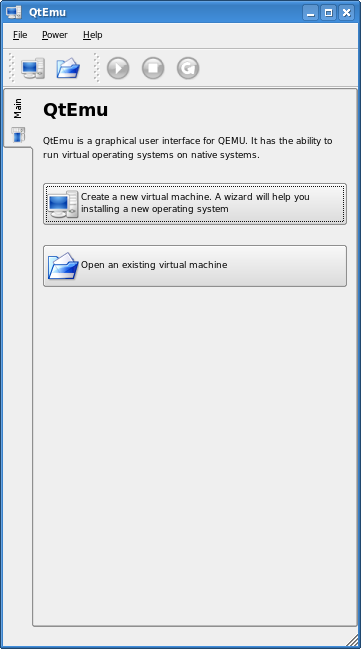
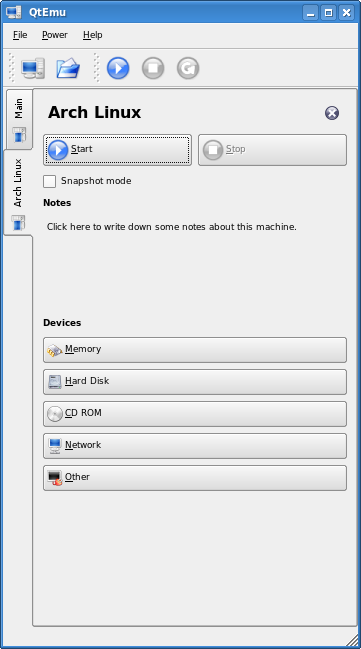
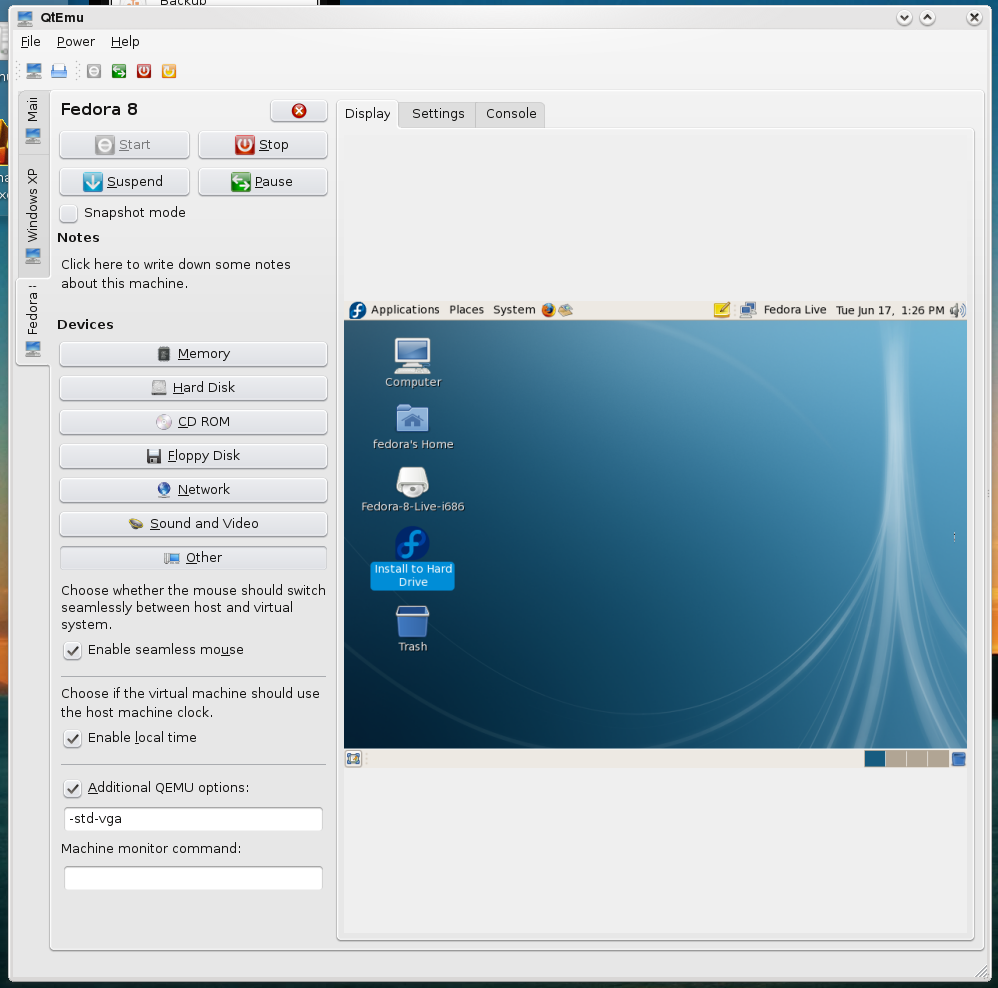
A) QTEMU is a user-friendly graphical interface to using QEMU (or KVM) which is optimised for creating x86 Virtual Machines while running on an x86 Host machine (ie setting up a Virtual PC running on a PC).

Q) How do I create a Virtual Machine?

A) After creating the virtual Hard Disk and setting the Virtual Machine options using the QTEMU wizard, boot the Virtual Machine from the Install CD of the Operating System you want to install. The QtEmu User's Guide provides more details.

Q) How do I connect to my Virtual Machine?

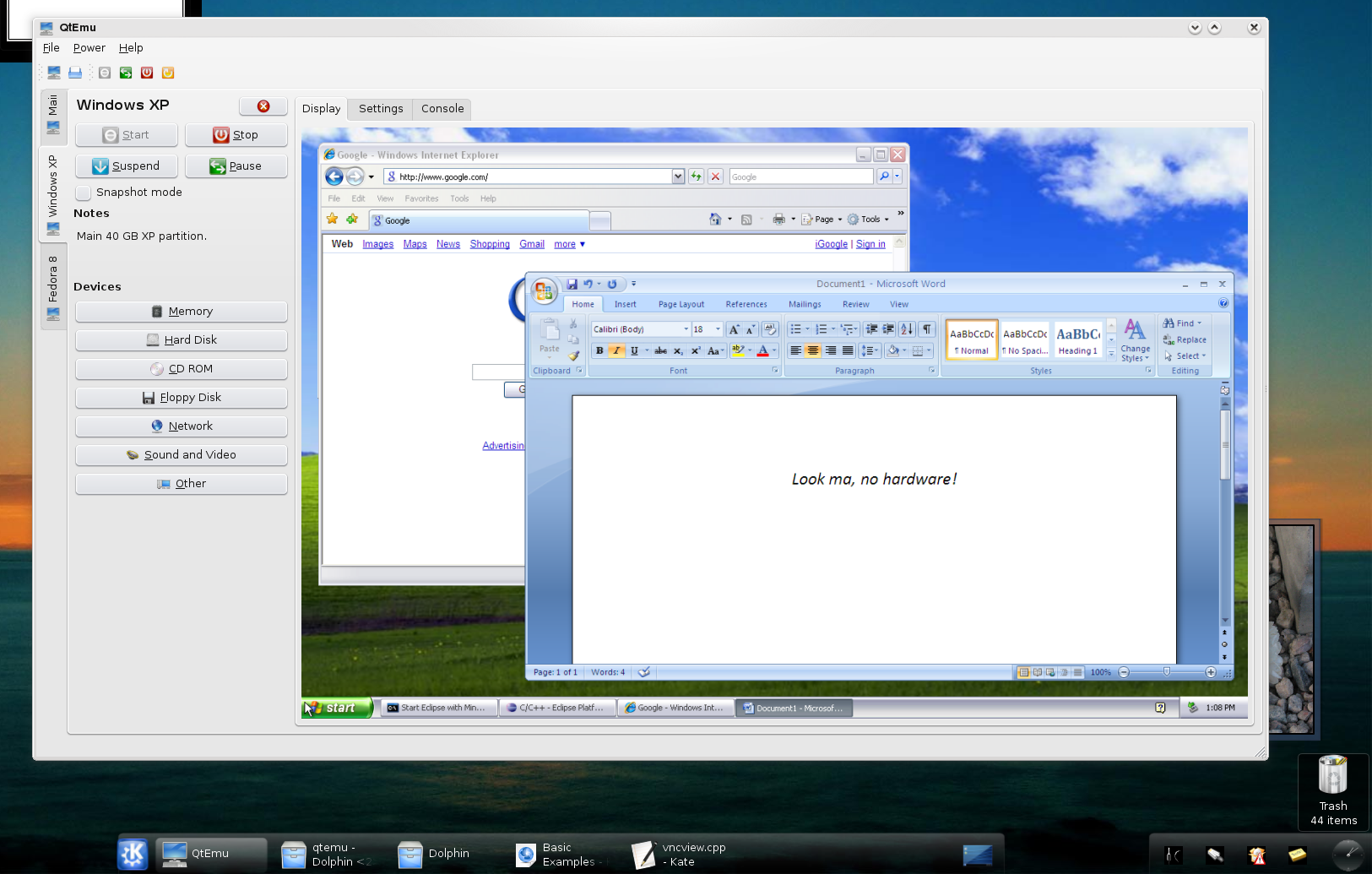
A) By default QTEMU uses VNC to connect to the Virtual Machine and allow you to interact with it. The Operating System running in the Virtual Machine will see this as a Cirrus CLGD 5446 PCI VGA card. QTEMU refers to this as an embedded display. When not using the Embedded Display the output of your virtual machine will be to a separate window in which you will have to select to send mouse and keyboard input to and use "CTRL-ALT" key combinations to return control to you Host Machines Operating System.

Q) What are Guest tools?

A) These are software tools available for many Operating Systems that can be installed into your Virtual Machine to allow some interaction between the Guest Machine and the Host Machine. QtEmu's guest tools use Qt, and thus should work on guests running Windows, MacOS, Linux, and likely other Unix Derivatives.

The guest tools will allow you to copy & paste between the Guest and Hosts Machines and may allow for resizing of the Guest Machines desktop resolution in the future. The guest tools are not yet considered stable, and are known to have some flaws.


Q) How do I tell if my PC supports KVM?

A) If your PC is newer than 2008 it probably supports it. If older then 2006 it definitely doesn't. The easiest way to tell is with the following Linux command "egrep '^flags.*(vmx|svm)' /proc/cpuinfo" if this returns a line containing either vmx (for intel CPUs) or svm (for AMD CPUs) then your CPU supports KVM.


Q) Can I create a Virtual Machine from a real one?

A) QEMU image tool supports a number of virtual disk formats one of them is RAW format, which is a bit for bit copy of a real Hard disk. You can create a RAW disk image by using the Linux 'dd' command to make a direct copy of a real Hard disk. ('dd if=/dev/sdb of=~/image.raw')

Q) Can I migrate my Virtual Machine from other Virtualization tools like VmWare?

A) QEMU supports VmWare virtual disks so there is no need to convert them (convert to QEMU's native virtual Disk format if you wish). Other virtualization tools can convert their hard disk images to a VmWare image or some other common image format like RAW. Some of the virtualised environment is different so there maybe some driver issues for some Operating Systems (for windows boot in safe mode and select "download from internet" when updating hardware you may need to go so far as "repair" windows).

Q) My Guest machine running windows reports drivers missing.

A) Windows does not seam to have drivers available for the PCI bus or VGA driver (if you selected High Resolution and wide-screen in QTEMU display settings page). How ever aside from windows trying to find drivers for these devices the first time it sees them it does not affect the functioning of your windows Guest machine.

Q) Can I connect to my virtual hard disk without starting my Virtual Machine?

A) You can use the qemu-nbd command. This command maps the virtual hard-disk image file to a Netwrok block driver which can then be mounted.

  1.  Before you can use this command you need to have the NBD kernel module loaded ('modprobe nbd')
  2.  then you can map the virtual harddisk file to the nbd device ('qemu-nbd -vc /dev/nbd0 HD image.qcow') this will work with any HD image format supported by qemu.
  3.  This will create a device for each partition in the virtual hard disk file. You can then mount the the partions like 'sudo mount /dev/nbd0p1 /mnt'
  4.  When done you should unmount ('umount /mnt') and disconnect the HD image from the nbd device ('qemu-nbd -d /dev/nbd0')

NOTE:- The qemu-nbd command above needs appropriate access rights to access the nbd device. It also does not give you any error if you do not have access or enter the wrong filename, it will simply not not work.

NOTE:- Even if the disk image is a raw image you will not be able to mount it through the loop option like other images (eg a CD iso) because your VMs disk image includes the partition table and so is not JUST the file system. This is why you need to use 'nbd' which will make accessible the partitions them selves.

Q) I don't see the display output in the embedded display of the Guest machine.

A) The embedded display uses VNC and current versions of VNC do not work with IPv6 . If your distribution has IPv6 enabled you may have to specify the IPv4 address 127.0.0.1 instead of the hostname "localhost" in the embedded display settings.
update next VNC version supports IPv6

Q) I have had problems with my windows virtual machine when I converted it from VMware/Real machine.

A) The hardware virtualised by the qemu viretaul machine is different form a real machine which is also different form a VMware virtual machine. This can casue issue especially with Microsoft windows. The most practical way to fix the windows installaiton after moving it to new hardware is to use the original install CD and do a windows "repair". Some say you can get away with replacing the c:/windows/system32/hal.dll file or removing the c:/windows system32/drivers/agp440.sys file but in my experience this is very error prone.

Q) How can I improve the speed of Guest machine

A) Virtual Machines today are almost as fast as a native machine but you are still Sharing the resources of you Host machine with those of you Guest machines and emulated hardware will always me slower (eg your virtual HardDisk and virtual graphics card). For this reason you will probably want to turn off a lot of the unnecessary visual effects like "drop shadows" and "fade menu into view". Caching and backup&restore in you guest machine could also be turned of to improve performance as these may be better done from the Host machine.

Setting the configuration of your Guest machine in QTEMU to use more then 1 virtual CPU (under CPU/memory settings page of the Guest machine) will improve the multitasking and speed of the Guest machine. It is recommend that if you have more than 1 CPU in your Host machine you set the number of virtual CPUs to the same number of CPUs in your Host machine but even if you have only 1 CPU in the Host it may still improve the speed of the Guest to have this set to more then 1

In windows I would recommend the following (in order form most beneficial to least):-

  1. Install Guest qemu/kvm tools & drivers into the guest machine, If your guest OS supports such drivers. There is a QtEmu tools that allows copy and paste between the Guest and Host machine. Red-Hat are working on windows drivers for faster KVM virtual Hard Disk access and Network access
  2. Turn down visual effects: Go to System properties-> Advanced->performance->visual effects and use Custom setting to turn off everything except "Smooth edges of screen fonts" and "use visual style on windows and buttons".
  3. Turn off System Restore: Go to System Properties->System Restore->Turn off system restore on all drives. If you want to backup or undo changes in your guest machine use the qemu snapshot function or take a copy of the virtual hardDisk.
  4. Manage your Page file: Under System Properties->Advance->performance->Advanced->Virtual Memory, set this to a fixed size or turn it off entirely. You are better of assigning more memory to the guest machine then using the Guest machines swap or page file as this page file will be written to the virtual HD which is slow compared to the Host machines direct access to HD swap space.
  5. You may also consider turning off HD caching in you Guest machine as your Host machine will cache any writes to the virtual HD anyway.


Q) Screen in Windows doesn't refresh

A) The default virtual Hardware for graphics is now the VMware SVGA II driver. This does not work correctly for windows guest machine. To go back to using an Cirrus graphics card un-select "High Resolution and Widescreen Video Modes". Hopefully this will be fixed in next release of KVM/QEMU.